What is Harmonimo best for?
Harmonimo is best for turning single-note input into playable chords, exploring progressions, shaping voicings, and routing generated MIDI into DAWs, instruments, or external synths.
Harmonimo Guide / 01
Harmonimo is a harmony tool built to turn single-note inputs into rich chords. It lets you explore chord structures, progressions, and melodies while keeping you in key. It comes as a standalone app, VST, and AU plugin for use in your DAW.
Quick answer
Harmonimo is a MIDI harmony tool that turns single-note input into rich chords while keeping melody and chord choices in key. It includes Performance Mode, Chord Builder Mode, smart voicing, playing styles, MIDI mapping, real-time MIDI output, and standalone, VST, and AU workflows for DAWs.
Section 01
Harmonimo has two main modes for exploring harmony in different ways.
Performance Mode lets you play chords with one hand and melodies with the other, and is built for exploring progressions. Chord Builder Mode lets you explore the structure and harmonics of chords themselves.
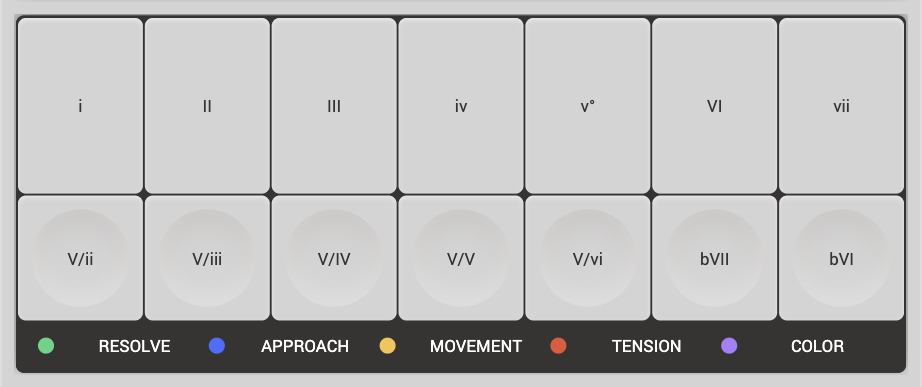
Performance Mode lets you explore chord progressions through the scale degree panel. The panel shows scale degrees I through VII across the top, with borrowed chords from V/ii to bVI across the bottom.
Performance Mode uses the scale, mode, and genre to automatically choose chords.
These pads can be played with the 1-7 and Q-Y keys on your laptop keyboard, or through your MIDI keyboard input.
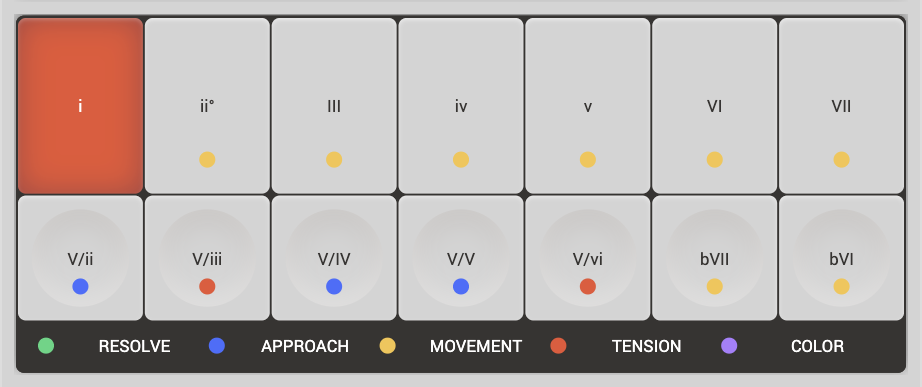
When you play a degree pad, the chord relative to the chosen key will sound. The other pads light up with colour suggestions for chords you could move to next, whether they resolve the sound, approach a resolution, create movement, add tension, or add colour to your progression.
These suggestions are there to guide and inspire. They do not have to be followed.
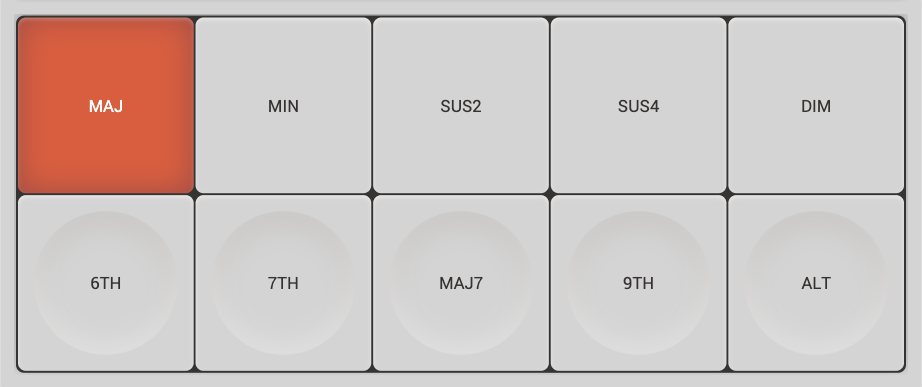
Chord Builder Mode lets you explore the shape of chords more directly. It is best for discovering new chord sounds. For complete freedom, change your key and mode to Chromatic so you are not locked to any specific key.
Use the chord pads at the top to shape the chord by choosing whether you want MAJ for major, MIN for minor, SUS2 for suspended second, SUS4 for suspended fourth, or DIM for diminished.
Use the augmentation pads underneath to alter your chord with a 6th, 7th, Maj7th, 9th, or altered sound. Combining augmentation pads can unearth new voicings of your chord.
When Smart Voicing is on, manual chord type and extension choices override the automatic choices so you can take over when you hear something specific.
You can use the 1-5 and Q-T keys on your laptop keyboard to play the pads, or map them to any MIDI control surface.
Section 02
The keyboard and key settings panel shows what is playing and sets the musical context for Harmonimo.
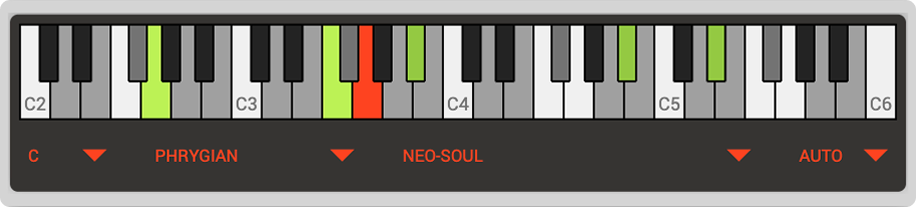
The visual keyboard shows you which notes are playing in your chord, in case you want to use Harmonimo for learning or for understanding voicings and chord structures more clearly.
This panel lets you change the key, mode, genre, melody approach, and current Harmonimo mode.
Key lets you select the tonic you are in, such as C, C#, D, or D#, and the mode, such as Major, Minor, or Dorian.
Genres are algorithmic presets built to shape chord voicings in different ways and create sounds specific to that style. The chords themselves are not fixed. Instead, they take intervals and previous chords into account, along with the tension and spread settings, to create more musical progressions.
In Performance Mode, you can play melodies with one hand and chords with the other. Melody Approach changes how this works. When you play a melody, it stays in key and in harmony with the chord you are playing.
In Performance Mode, you can use the keys Zthrough/ on your laptop keyboard to play melodies, or use a MIDI keyboard. Melodies do not work in Chord Builder Mode.
Mode changes the current mode between Performance and Chord Builder.
The visual keyboard shows the current notes in the selected key, greying out disabled notes, and shows the notes currently sounding across the keyboard. You can click on the keyboard to play around.
In Performance Mode, you will see two green handles surrounding the chord degrees. Drag these handles to choose where on your MIDI keyboard you want to assign chords. The rest of the keyboard will play melody or bass.
In Performance Mode, the scale degree keys play the appropriate chord for the scale, ignoring the note pressed on your keyboard.
In Chord Builder Mode, your whole MIDI keyboard controls the chords based on the actual note played.
Section 03
The global controls change the voicing and sound you get from your setup.
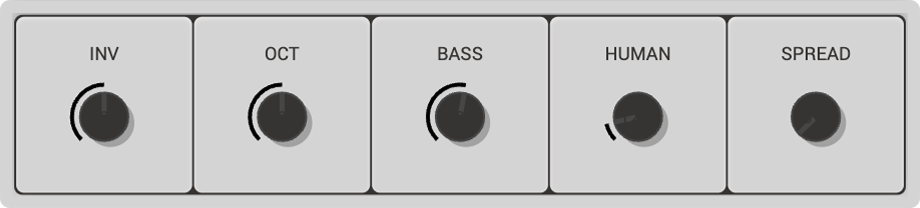
These dials let you explore, perform, and further dial in the sound you are looking for.
The INV control intelligently inverts the current chord you are playing. Each notch flips the lowest or highest note across to the other side of the chord. Mapping this to a MIDI dial is a great way to add movement to your playing. This can also be controlled with [and] on your laptop keyboard.
The CH-OCT control adjusts the octave of the played chords for a different position on the keyboard.
The MEL-OCT control adjusts the octave of the played melody to a different position on the keyboard.
The SPREAD control widens your chord, adding more notes to the left and right for a richer sound.
Harmonimo automatically changes and chooses chords based on previous chords to help build tension through a melody. The T-BIAS control alters this behaviour, allowing you to stay closer to less complex chords by turning it left, or move toward more complex chords by turning it right.
Section 04
The playing style section lets you choose between three approaches.
Chord, Arp, and Pattern each have their own settings to help humanise or change the way Harmonimo plays your chords.
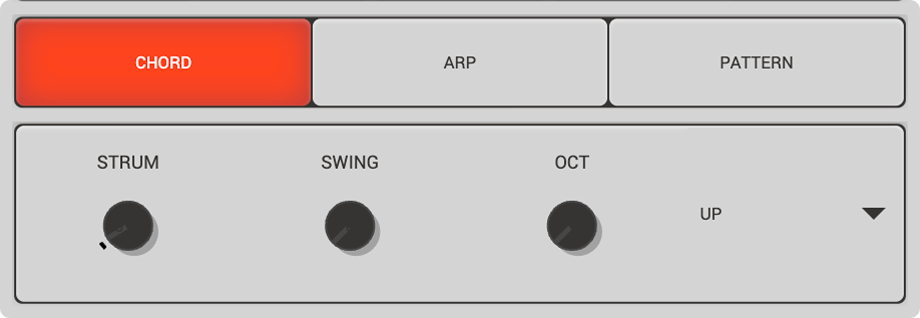
Chord style plays chords directly.
Strum creates broken chords that sound with a delay between each note, creating a cascading effect. Mapping this to a MIDI dial is a great way to add dynamics to your playing.
Swing controls the swing of the strum, creating a more rhythmic feel between each note.
OCT adds extra octaves to your chord. Things can get a little wild, letting you play massive chords across the keyboard.
Humanisation creates subtle variation in timing and velocity for more human-sounding and human-feeling chords.
Direction controls the direction of the broken chord strum, allowing you to play from high to low, low to high, both, or random.
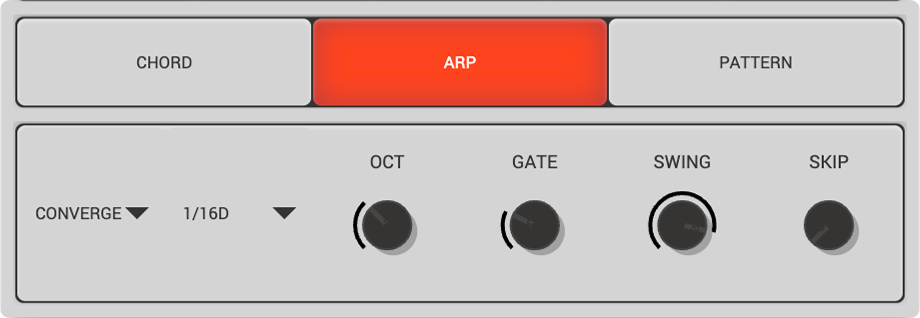
The ARP mode automatically plays the individual notes of a held chord in a rhythmic sequence.
Direction changes the direction or sequence of the arpeggiator. Rhythmic Duration changes how long each note holds before moving to the next. OCT adds extra octaves to your chord, letting you play large arpeggiated chords across the keyboard.
Gate changes how long each note sounds before it cuts off, which can create a more staccato feel. Swing adds more swing between each note. Skip randomly skips notes in your chord as it plays, creating rhythmic gaps.
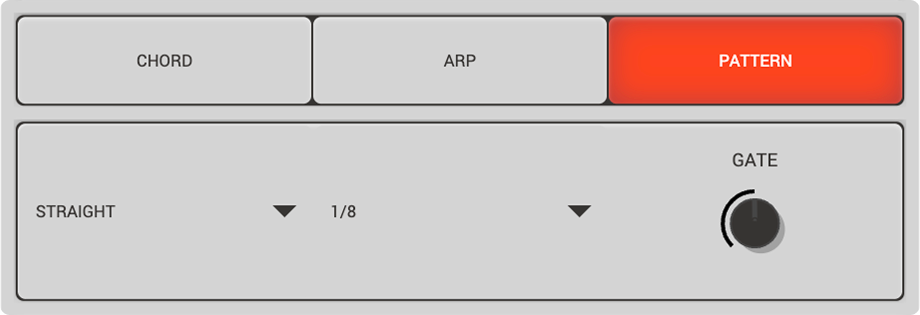
Pattern Mode lets you create chord-playing patterns, so you can hold one note and have the chord pattern automated.
Preset gives you several patterns to try. Rhythmic Duration changes how quickly the pattern plays over your measures.
The pattern window displays your chord pattern. You can click in this window to create your own patterns. Clicking twice on a white bar creates a held chord.
Gate changes how long each note sounds before it cuts off. Swing adds more swing between each note. Humanisation creates subtle variation in timing and velocity for more human-sounding and human-feeling chords.
Section 05
The final panel is all about chord and playing behaviour.
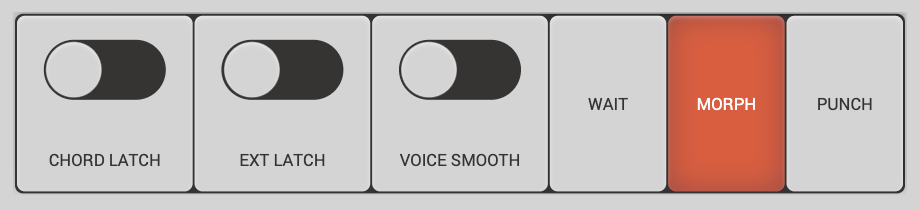
These controls let you fine-tune the way Harmonimo behaves for your needs.
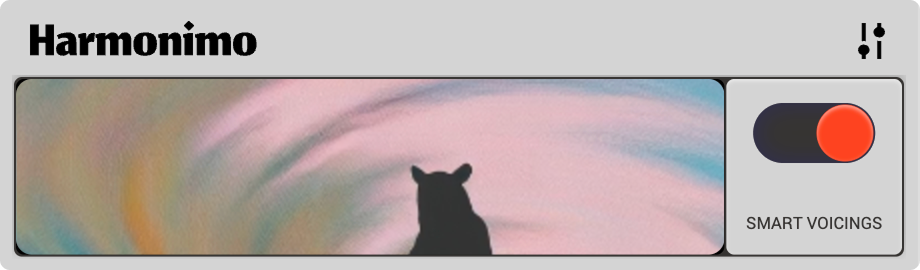
Smart Voicing automatically enriches chords with tasteful extensions. It listens to the key, harmonic function, chord degree, genre, progression context, and tension level before choosing what to add.
When Smart Voicing is on and you have not manually selected extensions, Harmonimo can add 7ths, 9ths, and other colours that make sense in context.
Chord Latch holds onto a chord when you release the key, until the next chord is triggered.
EXT Latch is specifically for Chord Builder Mode. It latches or holds onto the chord extensions when you release the key.
Voice Smooth intelligently attempts to smooth transitions between chords. As you move from one chord to the next, if the jump of some notes is too large or harsh, Harmonimo attempts to invert the chord for a smoother sound.
This often makes progressions sound smoother or better, but sometimes it can come at the expense of larger expressive movements.
Wait does not alter chords you are already playing as you change settings. Instead, it waits for the next chord to be triggered before taking those changes into account.
Morph immediately alters the currently playing chord in real time as you change settings. It is the most expressive approach.
Punch plays the entire chord again as you change settings in real time, creating a punchier effect than Morph. This can be useful in Chord Builder Mode.
Section 06
The settings panel handles themes, MIDI presets, mapping, routing, sync, audio, and licensing.
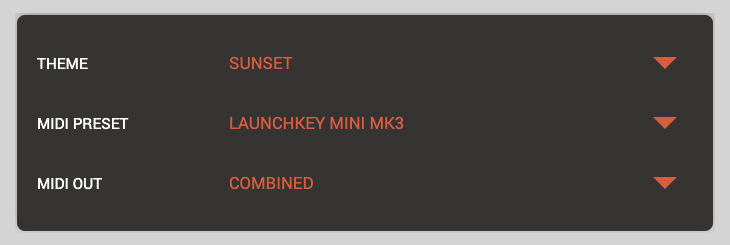
Change the colour scheme and theme of Harmonimo to your liking.
You can create and save MIDI presets for your own controllers, then load them here when needed.
Decide whether Harmonimo outputs combined MIDI, chords and melodies through separate channels, chord only, or melody only.
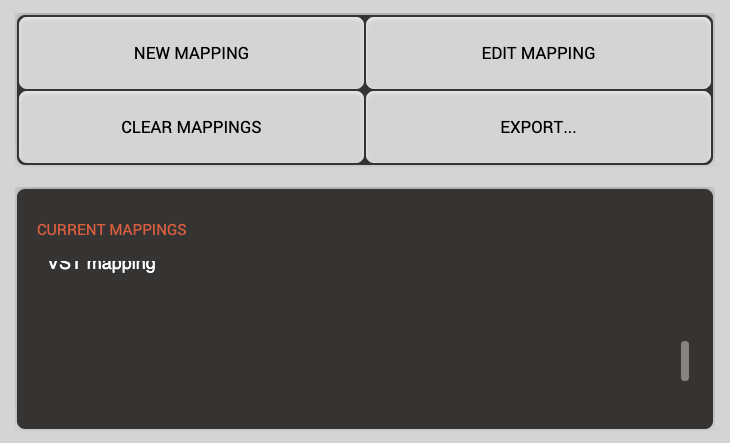
New Mapping, Edit Mapping, Clear Mappings, and Export let you create, edit, clear, and export mappings.
Current Mappings is a debug view that shows which MIDI mappings are currently in play.
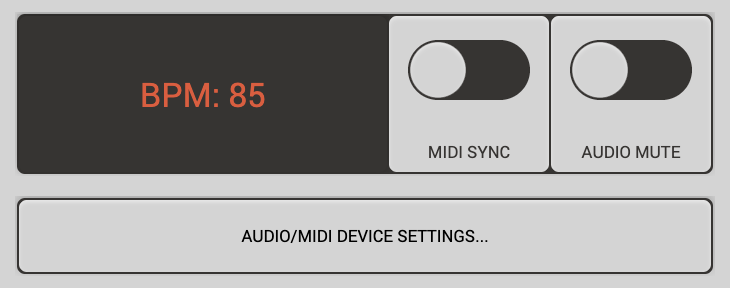
You can set the BPM that affects the arpeggiator and patterns here. When Harmonimo is used as a plugin, this is greyed out and taken from your DAW. In standalone, you can turn on MIDI sync so Harmonimo listens for BPM through MIDI.
Audio Mute mutes Harmonimo's audio in case you want to run it through an external MIDI instrument.
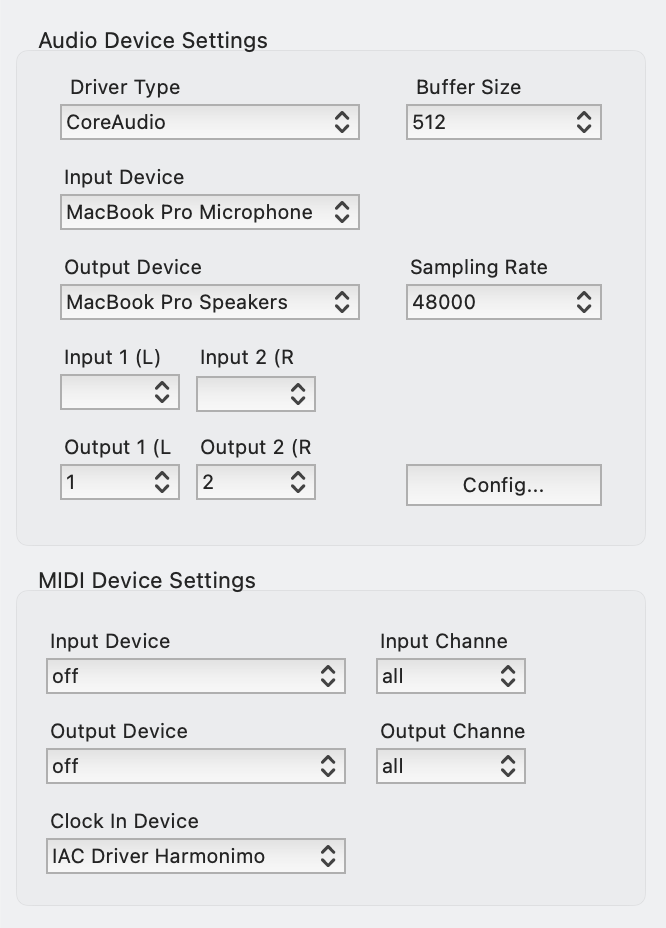
This lets you change the audio drivers, output devices, and MIDI device settings. You can set up MIDI in and out here for routing standalone to your DAW or to a MIDI-capable synth.
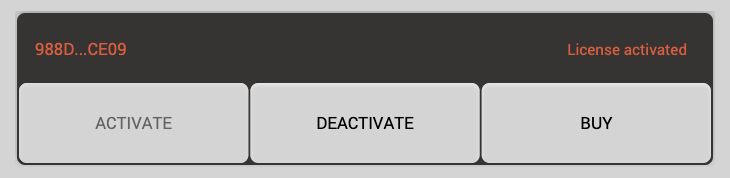
Enter your Harmonimo licence here to activate all features.
FAQ
Harmonimo is best for turning single-note input into playable chords, exploring progressions, shaping voicings, and routing generated MIDI into DAWs, instruments, or external synths.
Performance Mode is for playing progressions from scale-degree pads and keeping melody in key. Chord Builder Mode is for directly shaping chord types, extensions, and harmonic colors.
Yes. Harmonimo can output MIDI in supported workflows, including standalone routing, so generated harmony can drive DAW tracks, software instruments, or external MIDI-capable devices.