What is Kodotone best for?
Kodotone is best for building drum patterns, percussion parts, and evolving grooves from lane-based generated rhythms that you can steer with groove dials, lane controls, samples, and MIDI.
Kodotone Guide / 01
Kodotone is a rhythm instrument and sequencer built to create drum patterns, percussion parts, and evolving grooves from a set of lanes. It can use built-in synthesized drum voices, imported samples, or a mixture of both, and runs as a standalone macOS app plus AUv2 and VST3 plugin targets.
Quick answer
Kodotone is a lane-based rhythm instrument and sequencer for creating drum patterns, percussion parts, and evolving grooves. It combines generated lane rhythms, global groove controls, built-in drum voices, imported WAV or MP3 samples, MIDI control, MIDI output, and standalone, AUv2, and VST3 workflows.
Section 01
Kodotone starts from a lane sequencer, with each lane acting as an instrument or sample.
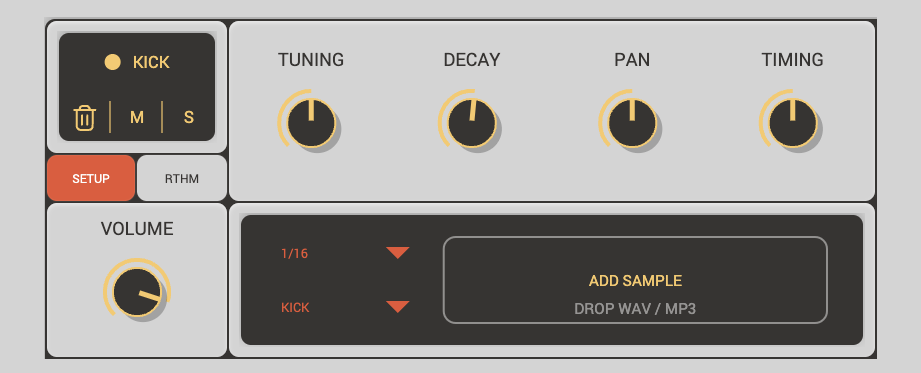
Each lane generates its own pattern from the settings on that lane. The sequence display at the top shows all active lanes together, so you can see the rhythm, accents, ghost notes, and current play position in one place.
The Play button starts and stops Kodotone when it is running as the standalone app. When Kodotone is running as a plugin, the sequencer follows your DAW transport, so the host play state controls when the rhythm runs.
BPM sets the tempo for the standalone app. When Kodotone is used as a plugin, BPM is taken from your DAW and the control is shown as a display rather than an editable tempo.
Time Signature changes the shape of the whole sequence. Kodotone supports 4/4, 3/4, 6/8, 5/4, and 7/8. Changing the time signature updates how lane patterns are divided into beats and bars.

The Key controls let you choose the root note and mode for tuned drum sounds and samples. Root chooses C through B, and Mode chooses Chromatic, Ionian, Dorian, Phrygian, Lydian, Mixolydian, Aeolian, or Locrian.
Chromatic leaves tuning free. Choosing one of the modes turns on Tune To Key behaviour, so tuned lanes are nudged into the selected musical key where Kodotone has enough pitch information to do it.
The Kit menu loads a complete starter kit and groove setup. Factory kits include Default, House, Trap, Boom Bap, Drum & Bass, Jazz, Afro 6/8, and Jungle.
Each kit can set the lane sounds, lane rhythm settings, tempo, swing, humanize, bars, and variation. Custom appears when you change the kit by editing the controls yourself.
The save button exports your current setup as a .kodotonekit file. When saving, you can choose a portable kit that embeds the lane samples inside the file, or a linked kit that remembers the existing sample paths.
The master sequence display shows every active lane as a row. Bright blocks are main hits, lighter blocks are ghost hits, bar starts are marked more strongly, and the current step is highlighted while the sequencer runs.
You can scroll the sequence display when you have more lanes than fit on screen. You can also drag from the sequence display to export the current pattern as a MIDI file into your DAW or file system.
Section 02
The global controls affect the whole rhythm once the pattern is mostly working.
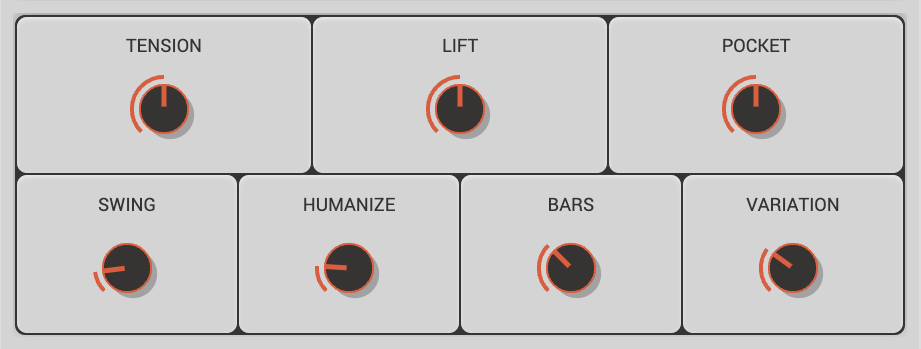
Reach for these when you want to change the energy, timing, or phrase length of the groove without editing every lane one by one.
TENSION pushes the groove toward more or less activity depending on the lane role. Turning it up can add density, ornaments, ghost movement, and more forward motion. Turning it down simplifies the pattern and can make the groove feel more resolved.
LIFT changes the energy and weight of the groove. Positive values tend to make parts feel lighter, brighter, or more animated, while negative values can make the groove feel heavier, longer, or more grounded.
POCKET changes timing and accent feel across lanes. Negative values lay parts back and create a deeper pocket. Positive values push parts forward and can make the pattern feel more urgent.
SWING delays off-beat steps to create a shuffled feel. At low values the rhythm stays close to straight timing, and at higher values it moves toward a heavier swing.
HUMANIZE adds small timing and velocity variations so the groove feels less rigid. It is useful for making repeated patterns feel more played and less programmed.
BARS sets the phrase length from 1 to 4 bars. Longer phrases give the lane patterns more room before they repeat. Kodotone will limit the maximum when a time signature or subdivision would create too many steps.
VARIATION changes the generated pattern choices across the lanes. It is useful for finding a different version of the same kit or groove idea without changing the core sound.
Section 03
Kodotone lets you build a custom performance panel from lane dials.
Drag a supported lane dial label into the performance area to create a larger quick-access control. This is useful for live tweaking, automation, and making a compact set of the controls that matter most to your current kit.
Supported performance controls include Volume, Tuning, Decay, Pan, Timing, Density, Warp, Ornament, Placement, Swing, Ghost, Accent, and Offset. The performance controls are linked to the original lane parameters, so changing one updates the other.
You can remove a performance control with the small X button in its slot.
Section 04
The lane rack is where you build the kit.
Each lane has its own identity, sound, sample slot, setup controls, and rhythm controls. Kodotone can use up to 12 lanes.
The plus button at the bottom of the rack adds a new lane. New lanes cycle through useful starting sounds such as kick, snare, closed hat, clap, open hat, and percussion.
Click a lane name to rename it. Click the coloured dot to choose a lane colour. The name and colour are used in the rack and in the master sequence display, making larger kits easier to read.
The role chip controls how the global macro dials treat the lane. Auto chooses a role from the sound or imported sample. You can also set the role manually to Kick, Backbeat, Timekeeper, or Color.
Kick roles are usually used for low drums and pulse. Backbeat roles are usually snares, claps, and rims. Timekeeper roles are hats, rides, and shakers. Color roles are percussion, toms, bells, and extra movement.
M mutes the lane. S solos the lane. The trash button deletes the lane. When one or more lanes are soloed, only the soloed lanes play.
Each lane has two pages. Setup is for the lane sound, sample, and tone controls. RTHM is for the generated pattern controls.
VOLUME controls how loud the lane is.
Section 05
The Setup page controls the sound source and basic tone of the lane.
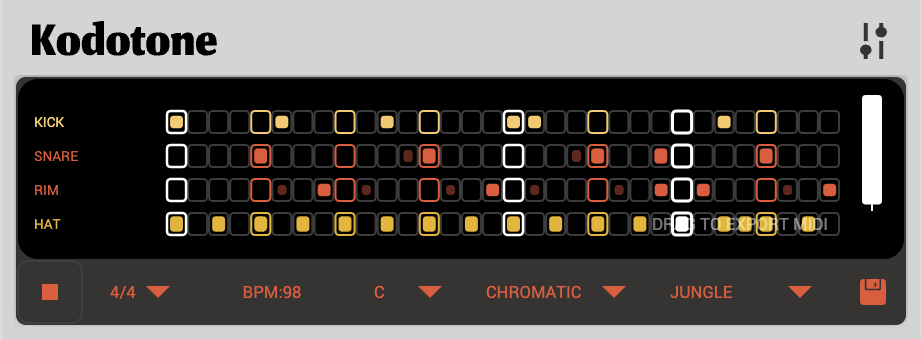
TUNING shifts the lane pitch up or down by semitones. It affects the built-in drum voice and imported samples. When Tune To Key is active, Kodotone also uses the selected key and mode to keep pitched material musically aligned where possible.
DECAY changes how long the lane sound lasts. Lower values make shorter, tighter hits. Higher values let drums and samples ring out longer.
PAN places the lane in the stereo field. Negative values move the lane left, positive values move it right.
TIMING moves the lane earlier or later against the grid. Negative values pull the lane earlier, and positive values push it later. This is useful for making kicks, snares, hats, and percussion sit together with a more natural feel.
Subdivision chooses the rhythmic grid for the lane: 1/4, 1/8, 1/16, 1/8T, or 1/16T. Triplet subdivisions are useful for swung, shuffle, jazz, trap roll, and 6/8 style patterns.
Sound chooses the built-in voice for the lane. Kodotone includes Kick, Snare, Clap, HiHat Closed, HiHat Open, Ride, Tom High, Tom Low, Percussion, Cowbell, Rim, and Shaker.
The sample slot lets you add your own WAV or MP3 to a lane. Click the slot to choose a file, or drag and drop an audio file onto it. Once loaded, Kodotone shows the file name and a waveform preview.
Click the X in the sample slot to clear the sample and return to the lane's built-in synthesized voice. Clicking the slot again lets you replace the sample.
When a sample has detectable pitch, Kodotone can use that information for Tune To Key. It can also detect likely lane role information from the sample name or content to help the macro controls react musically.
Section 06
The RTHM page controls how the lane pattern is generated.
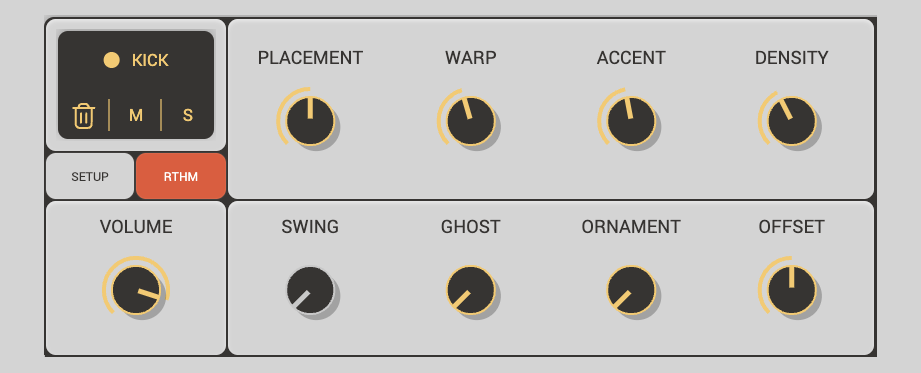
Kodotone uses Euclidean-style pattern generation, then applies placement, warp, ornaments, swing, ghost notes, and accents to shape the result.
PLACEMENT rotates the lane pattern forward or backward through the phrase. Use it to move the same rhythm onto a different beat without changing the number of hits.
WARP bends the spacing of the generated hits. Negative and positive values shift later hits in different directions, which can make a simple pattern feel more lopsided, syncopated, or pushed.
ACCENT changes the strength difference between important beats and lighter steps. Higher values make strong beats hit harder and weaker steps sit back.
DENSITY controls how many main hits the lane plays across its phrase. Low density creates sparse parts. Higher density creates busier patterns, fills, and continuous timekeeping parts.
SWING sets the lane's local swing amount when the lane is in Local swing mode. In Global mode, the lane follows the main Swing dial instead.
GHOST adds quieter extra hits around the main pattern. The display stages are Off, Hint, Pocket, Push, and Busy. Low values add small ghost details, while high values create more active rhythmic movement.
ORNAMENT snaps between five pattern transformations: None, Pickup, Offbeat, Skip, and Roll.
Pickup adds lead-in hits near the end of the phrase. Offbeat adds extra offbeat hits. Skip removes and replaces a hit to create a gap and response. Roll adds a short group of hits near the end of the bar or phrase.
OFFSET moves the ornament position earlier or later. It only affects the ornament transform, so it is useful for placing pickups, rolls, and offbeat details without moving the main pattern.
Each lane includes a compact pattern preview. It shows main hits, ghost hits, accents, timing shifts, bar starts, and the current step for that lane.
Section 07
Kodotone can be played and controlled from MIDI.
Incoming note messages can trigger lane sounds directly, with standard drum-style notes mapped across active lanes. The sequencer can also output MIDI notes and MIDI clock depending on the MIDI OUT setting.
MIDI Learn Mode lets you map hardware controls to Kodotone controls. Choose New Mapping or Edit Mapping in Settings, click a control, then move a MIDI knob, fader, pad, or key. Mappings can be saved as presets and exported as JSON files.
Section 08
The settings panel handles themes, MIDI presets, MIDI output, mapping, sync, audio, host preferences, and licensing.
Theme changes the colour scheme and visual style of Kodotone.
MIDI Preset loads a mapping preset for a controller. Factory options include Launchkey Mini Mk3 and Blank, and exported user presets can appear here as well.
MIDI OUT decides what Kodotone sends out. The modes are Off, Notes + Clock, Notes Only, and Clock Only.
New Mapping clears the current mappings and enters MIDI Learn Mode. Edit Mapping enters MIDI Learn Mode while keeping the current mappings. Clear Mapping removes the current custom mappings. Export saves the current mapping preset as a JSON file.
The Current Mappings view shows the active MIDI assignments, including the MIDI control, channel, and target Kodotone action.
In the standalone app, BPM can be edited in Settings and MIDI Sync can listen for external MIDI clock. In plugin formats, tempo is managed by the DAW.
Audio Mute silences Kodotone's own audio output. This is useful if you only want to use Kodotone to generate MIDI for another instrument.
In the standalone app, Host Preferences opens the audio and MIDI device settings. In plugin formats, audio and MIDI device routing is handled by the host.
The License section lets you enter, activate, and deactivate a Kodotone license. When no valid license is active, Kodotone can lock most sound and pattern controls until a license is activated.
FAQ
Kodotone is best for building drum patterns, percussion parts, and evolving grooves from lane-based generated rhythms that you can steer with groove dials, lane controls, samples, and MIDI.
Yes. Kodotone lanes can use built-in voices, imported WAV or MP3 samples, or a mixture of both. Sample lanes can show waveform previews and can still respond to rhythm and groove controls.
Kodotone is described on this site as a standalone macOS app plus AUv2 and VST3 plugin targets.