HarmonimoKodotone Studio FAQ Buy Harmonimo

AU, VST, and standalone routing for MIDI chord generator plugins.

A MIDI chord generator can run in a few different ways. AU is usually the Logic Pro path, VST is the most common cross-DAW plugin path, and standalone mode is useful when the chord tool should drive another app, device, or wider MIDI rig.

AU Best starting point for Logic Pro and GarageBand-style workflows
VST Common plugin path for Ableton Live, FL Studio, Cubase, Reaper, and more
Standalone Best when generated MIDI needs to leave the plugin host

Choose the format by host

Start with the format your DAW expects.

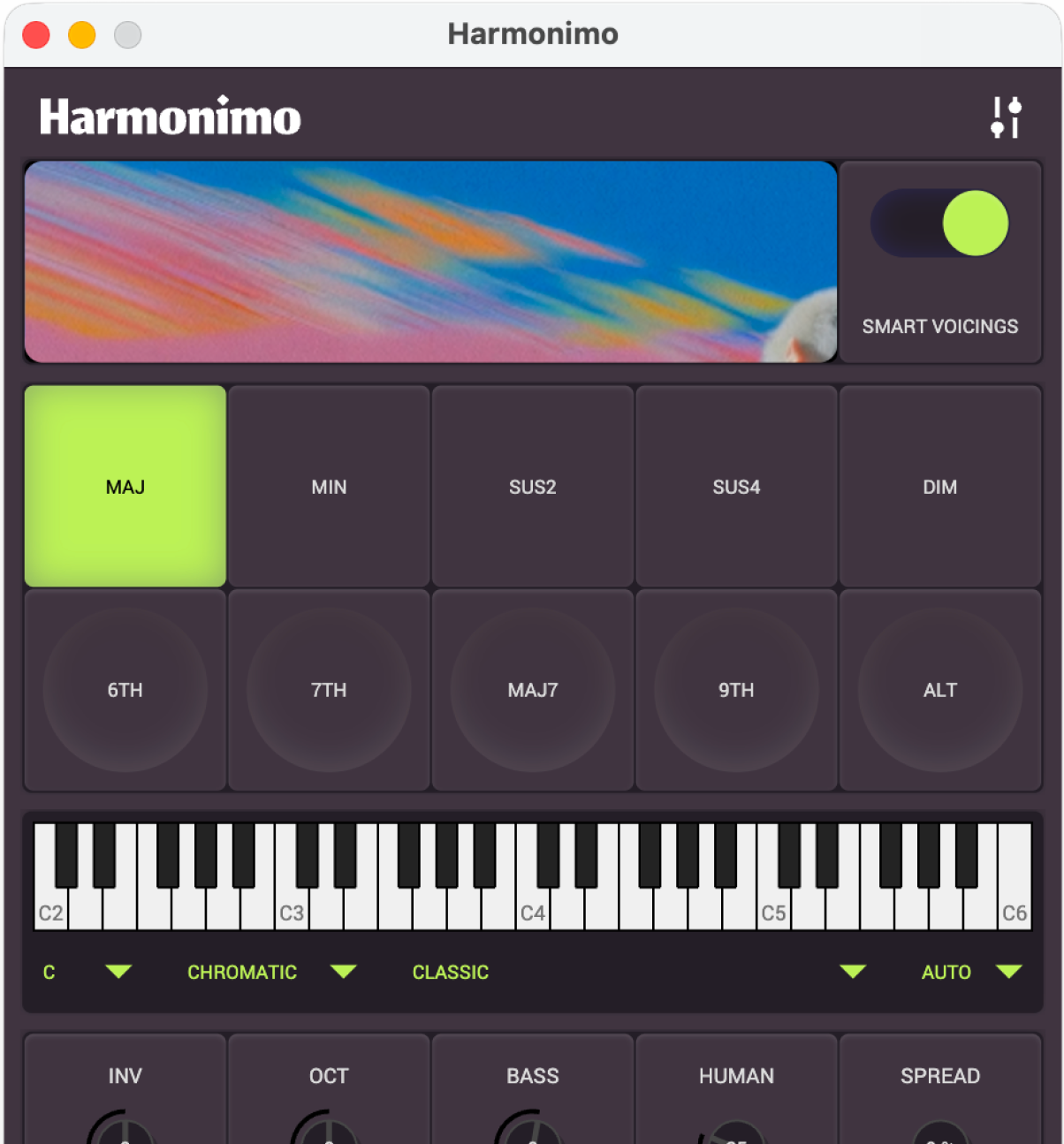
Harmonimo device specs and plugin format support

Logic Pro and GarageBand workflows generally start with Audio Unit. Ableton Live, FL Studio, Cubase, Reaper, Bitwig Studio, and Studio One workflows usually start with VST or VST3 depending on the host and platform.

That plugin route is best when you want the chord generator to live next to the instrument, arrangement, and automation inside one project. It keeps the setup compact and easier to recall.

  • Use AU when the host is Logic Pro or another AU-first app
  • Use VST/VST3 when the host expects VST plugins
  • Keep generated MIDI and sound generation in the same project when possible

Use standalone when routing matters more

Standalone mode is for setups where the chord generator is its own instrument surface.

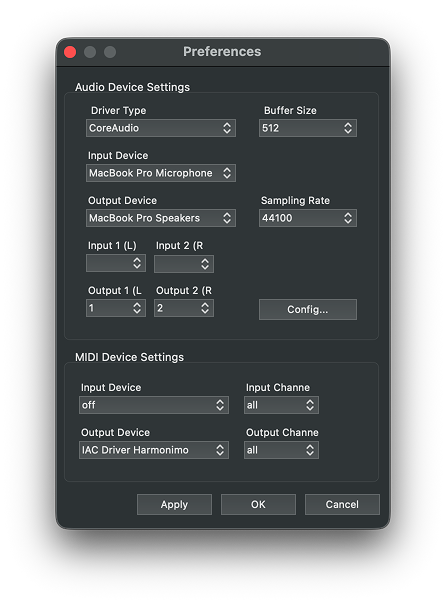
Harmonimo MIDI output settings

Standalone mode makes sense when Harmonimo should feed another app, an external synth, a network MIDI session, or a DAW track through a virtual MIDI bus. It can also be cleaner when controller mapping gets crowded inside the DAW.

The tradeoff is that you manage routing explicitly. The benefit is that the harmony tool can become a central MIDI source rather than one plugin inside one track.

  • Standalone app feeding a DAW through a virtual MIDI bus
  • Standalone app driving external synths or another computer
  • Separate controller setup for performance-focused chord playing

Best-practice setup order

Use the simplest working route first.

For most sessions, start with the direct plugin format for your DAW. If you hit a routing limitation, move to standalone plus virtual MIDI. That keeps the normal case simple while preserving a route for bigger MIDI systems.

This is also the easiest way to troubleshoot. If the plugin route works, you know the DAW and instrument chain are healthy. If you move to standalone later, you only need to solve the MIDI handoff.

  • Start with AU or VST inside the DAW
  • Confirm the instrument receives generated MIDI
  • Move to standalone only when you need external or cross-app routing
  • Use the virtual MIDI guide for exact bus setup

Take it into your setup.

Use the product page for the full overview, then use support for the exact setup steps that match this guide.